
Public Wi-Fi can be useful, but it’s also risky if you’re unprepared. Following safe practices helps protect your data and devices. These simple steps significantly reduce your exposure.
Key Takeaways
- Always verify the network and stick to HTTPS-secured sites.
- Avoid sharing sensitive information unless encrypted by a VPN.
- Disable sharing features, auto-connect, and keep devices updated.
1. Verify the Network (Avoid “Evil Twins”):
Before connecting, make sure you’re joining the legitimate Wi‑Fi network, not a similarly-named impostor. Ask an employee or check signage for the official network name and password if available. Avoid generic networks named “Free Wi-Fi” or anything suspicious. If a network is unsecured (no password), be extra wary – many legitimate venues now at least use a password for customers. Stick to networks you recognise or that are provided by a reputable establishment, and never enter sensitive logins on a network if you’re not 100% sure it’s legitimate.
2. Use Secure Websites (HTTPS Only):
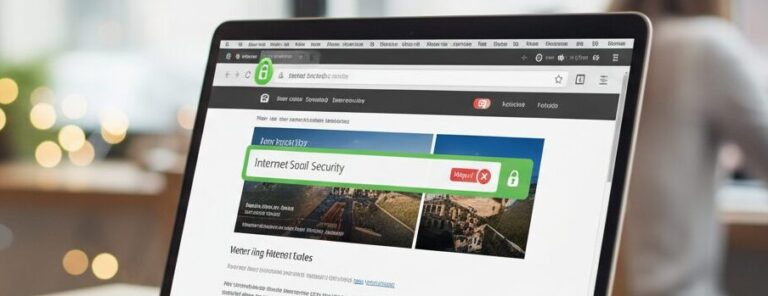
Always check that the websites you visit are using HTTPS (look for “https://” and the padlock icon in your browser’s address bar). Secure pages encrypt your data, so even if someone intercepts traffic, they can’t read it.
If a site only offers HTTP (unencrypted) connections, avoid using it on public Wi‑Fi, especially if you need to log in or enter any information. Most modern browsers have an option to enable “HTTPS-Only” mode, which can help ensure you don’t accidentally visit unencrypted sites. In short, stick to sites with HTTPS – they significantly improve your safety on public Wi‑Fi.
3. Avoid Sharing Sensitive Information
This tip bears repeating: do not send personal data, passwords, or credit card details over public Wi‑Fi unless absolutely necessary. If you wouldn’t shout it in a public room, don’t send it in plain text over a public network. That includes filling out forms with personal info, online banking, making purchases, or anything that reveals your identity and private data. Even if you’re on what appears to be a secure site, consider waiting until you’re on a more secure connection for any high-stakes transactions. Public Wi‑Fi is best used for low-risk activities – save the sensitive stuff for later or use a VPN to encrypt it.
4. Use a VPN for Encryption
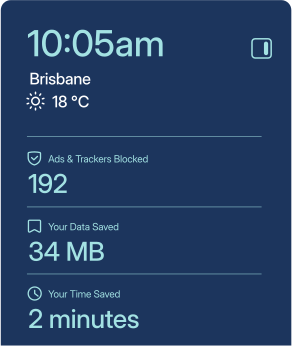
One of the best defences for public Wi‑Fi is to use a VPN (Virtual Private Network) whenever possible. A VPN app on your laptop or phone creates an encrypted tunnel for all your internet traffic, effectively scrambling your data so that others on the network can’t decipher it.
Even if a hacker manages to intercept your connection, all they would see is indecipherable gibberish, not your actual browsing activity or credentials. Many security experts recommend using a VPN by default on any public hotspot – it essentially makes a public network behave like a private one for you.
5. Turn Off Sharing & Network Discovery
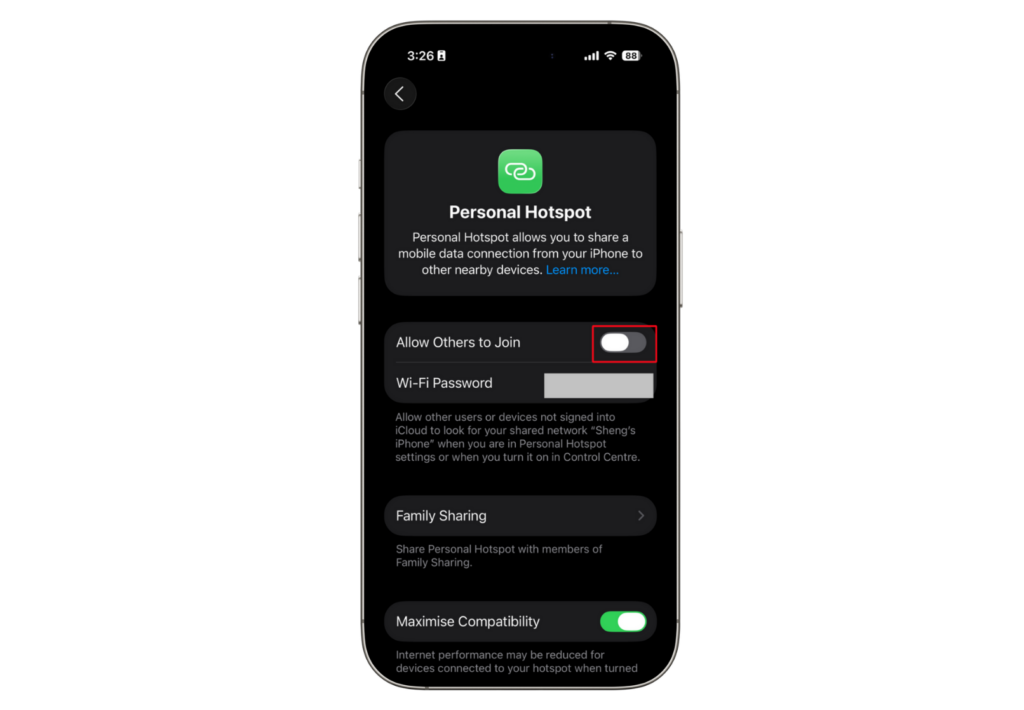
When connected to public Wi‑Fi, make sure your device isn’t openly accessible to others. Turn off file sharing, AirDrop, network discovery, or any feature that allows other devices to see or connect to yours.
If your device asks if the new network is “public” or “home/private,” always choose “public”, which ensures stricter security settings. Windows, for example, will disable file sharing automatically on public network profiles.

On a Windows PC, you can also double-check that Network Discovery and File Sharing are turned off for public networks. in Windows 11, go to Settings > Network & internet > Advanced network settings > Advanced sharing settings, then expand Public networks and turn off Network discovery and File and printer sharing.
This prevents a malicious actor on the same Wi‑Fi from accessing your files or planting malware on your device.
6. Disable Auto-Connect and “Forget” Networks

Disable the “auto-connect” feature for public Wi‑Fi networks. Go to Settings > Wi-Fi, tap the (i) information icon next to the network’s name, and then toggle off the Auto-Join switch. Also, after using a public network, consider “forgetting” it so your device doesn’t reconnect automatically next time. This reduces the window of opportunity for attackers.
For example, if you connected to “Airport WiFi” once, a hacker could set up a rogue network named “Airport WiFi” later – but if your device isn’t set to auto-connect, you won’t unknowingly join it. Only connect when you intend to, and disconnect when you’re done.
7. Keep Your Device Secure (Updates & Antivirus)
Public Wi‑Fi exposes you to not just snooping but also malware attacks. Ensure you have a quality antivirus or anti-malware program active, and keep your system and apps up-to-date with the latest security patches. Updates often fix security vulnerabilities that hackers might exploit on a shared network. Likewise, use strong, unique passwords for your accounts and enable two-factor authentication (2FA) where possible – that way, even if someone stole a password, they can’t easily misuse it. Good security hygiene on your device will complement the network safety steps above, forming a multi-layered defence.
Verifying network names, using HTTPS‑only mode, turning off sharing features and keeping devices updated are all key habits for safer public Wi‑Fi use. Layering these practices with privacy‑first tools that integrate a VPN to encrypt your traffic, ad and tracker blocking to reduce exposure to malicious scripts, and a no‑logs policy so your browsing history isn’t stored. Max Browser is designed for people who don’t want to juggle separate apps but still value control over their privacy on the road.